
Video Bitrate Explained: Why Upscaled Files Grow

Bitrate is the number of bits the file spends on one second of video, usually written in Mbit/s (megabits per second). File size follows directly: size in megabytes = bitrate in Mbit/s × seconds ÷ 8. A 3-minute clip at 1 Mbit/s is 22.5 MB. Upscale it 2x and the new file can easily be 80 MB, because the bigger frame is given a bigger bitrate budget.
That jump surprises people, because the picture didn't gain real information. This post explains where the budget comes from, what the usual numbers are, and what to do when the upscaled file is too big to send.
What bitrate actually measures
A video file is a list of compressed frames. The encoder (the software that writes the file) decides how many bits each second of footage may use, and everything else follows from that. Bitrate says nothing about resolution by itself: a 4K clip at 2 Mbit/s and a 480p clip at 2 Mbit/s have the same size per minute, and the 4K one will look far worse because the same budget is spread over about 20 times as many pixels.
So the number that predicts quality is not the bitrate alone. It's the bitrate relative to the picture it has to describe: bits per pixel, which is bitrate ÷ (width × height × frames per second).
A 480p clip at 1 Mbit/s and 30 fps works out to 1,000,000 ÷ (854 × 480 × 30), about 0.08 bits per pixel. Squeeze a 1080p clip to the same 1 Mbit/s and it drops to roughly 0.016. That's the file that turns to blocks the moment the camera moves.
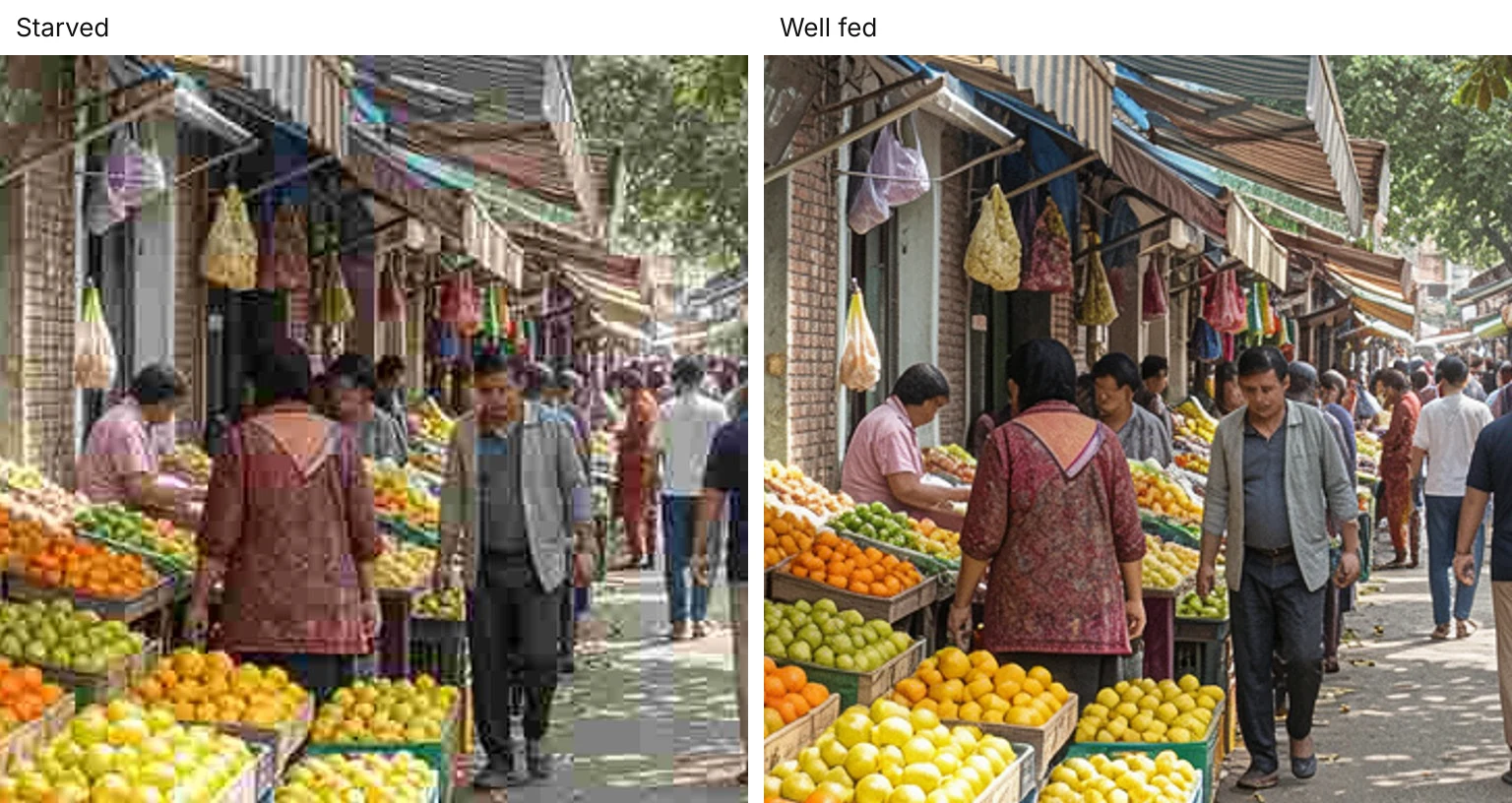
The picture above is a still saved at two compression levels, which shows the same blocking and smearing a starved video bitrate produces. Fine textures such as leaves and awning stripes go first, because they take the most bits to describe.
What file size you should expect
Multiply by 7.5 to get megabytes per minute from Mbit/s (60 seconds ÷ 8 bits per byte). YouTube's recommended upload settings list these SDR bitrates for 24, 25 and 30 fps, with higher figures for 48 to 60 fps:
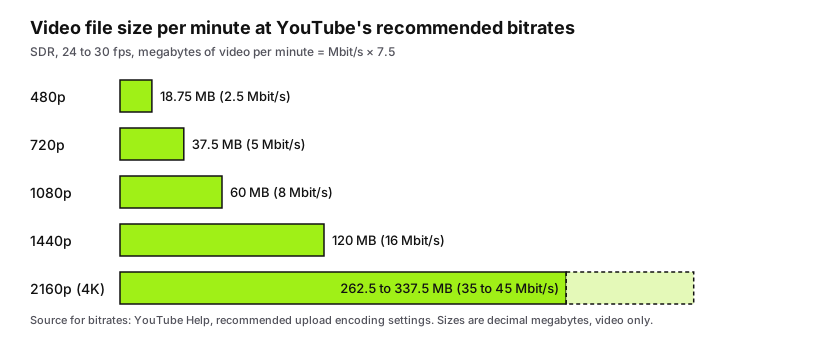
Two things stand out in that table. First, frame rate costs bits: 1080p at 48 to 60 fps is 12 Mbit/s, one and a half times the 8 Mbit/s for 24 to 30 fps. Second, the bitrate doesn't scale with the pixel count. Going from 720p to 1440p quadruples the pixels but YouTube asks for 3.2 times the bitrate (5 to 16 Mbit/s). From 1080p to 4K the pixels also quadruple and the recommendation rises 4.4 times at the low end (8 to 35 Mbit/s).
Why not a clean 4x? Larger frames have more smooth areas per block, and encoders predict smooth areas cheaply. That's the usual explanation. The exact ratio depends on the footage, and YouTube's table is guidance for uploads that will be re-encoded anyway, not a law.
Also note the audio: YouTube suggests 384 kbit/s for stereo, which is small beside any video figure.
Why an upscaled file comes out bigger
An upscaler makes more pixels, and the encoder that writes the result needs a bitrate. It doesn't look at the source file's bitrate and copy it. The free upscaler on this site sets the output bitrate from the output size, at about 6 Mbit/s for a 1080p result and about 22 Mbit/s for a 4K UHD one, whatever the input used.
A worked example. Take a 3-minute 640×480 clip at 1 Mbit/s, a typical size for an old camcorder transfer:
- Source: 1 × 180 ÷ 8 = 22.5 MB.
- Upscaled 2x to 1280×960 at roughly 3.7 Mbit/s: about 82 MB, 3.6 times larger.
- A 5-minute clip finished at 3840×2160 and about 22 Mbit/s: roughly 840 MB before container overhead, against about 38 MB for 5 minutes at 1 Mbit/s.
The growth is storage, not extra information in the picture. The bigger budget does have a use: squeezing the enlarged frames back into the old 1 Mbit/s would starve them, which is how a starved bitrate makes video look bad. What the upscaler rebuilds still depends on what survived in the original, which how AI video upscaling works covers in detail.
Check the size before you start. The free upscaler's 150 MB input limit and 5-minute length limit apply to the clip you load, not the result, so a clip well under the cap can still produce a 4K file in the hundreds of megabytes. Pick the scale by where the video will be watched. A phone screen doesn't need 4K, and 2x is usually enough to bring a 480p clip to 1080p-class output.
H.264 and H.265
A codec is the method the encoder uses to turn frames into bits. H.264 plays everywhere: it's what the upscaler writes into its MP4 files, and YouTube lists it as the recommended upload codec. H.265 (also called HEVC) is its successor and needs less bitrate for the same look. Fraunhofer HHI's page on the standard puts the saving at about 50% at the same subjective quality. Measured savings vary with the footage and the test, so treat 50% as the best case.
The trade-off is compatibility. Playback of H.265 in browsers, messaging apps and older TVs is patchier than H.264, so a smaller file that won't open for the recipient isn't a win. Use H.265 for files you keep or play on your own devices, and H.264 for anything you send to other people.
When the upscaled file is too big
Work through these in order, because each one costs less quality than the next.
- Pick the smaller scale. If the clip is 640×480, 2x gives 1280×960 at around 3.7 Mbit/s, while 4x gives 2560×1920 at nearly 14 Mbit/s. Four times the pixels buys a file roughly four times as large.
- Trim the clip first. Size is linear in duration. Cutting a 5-minute clip to the 90 seconds you need cuts the output by 70%.
- Re-encode the finished file. Open it in HandBrake and use constant quality, which HandBrake's documentation recommends unless you have a specific reason not to. For H.264 its guide suggests RF 20 to 24 at 1080p and RF 22 to 28 at 4K. A lower RF means higher quality and a bigger file. Change it a couple of steps at a time and compare.
- Check your destination's own recompression. A platform that re-encodes everything, YouTube included, will compress your upload again, so sending 200 MB of detail it will throw away saves nothing. Match the table above, not the biggest file you can make.
Re-encoding does cost some quality, because the file is compressed a second time. If the size isn't a problem for the recipient, keep the upscaler's output as your master and make a smaller copy for sharing.
To see the numbers for yourself, upscale a clip and compare the file sizes: note the input's size, run it at 2x, then check the download.
Ready to try it yourself? It's free, and your files never leave your device.
Try the free AI video upscaler