
How to Upscale an Image to a 4K Wallpaper
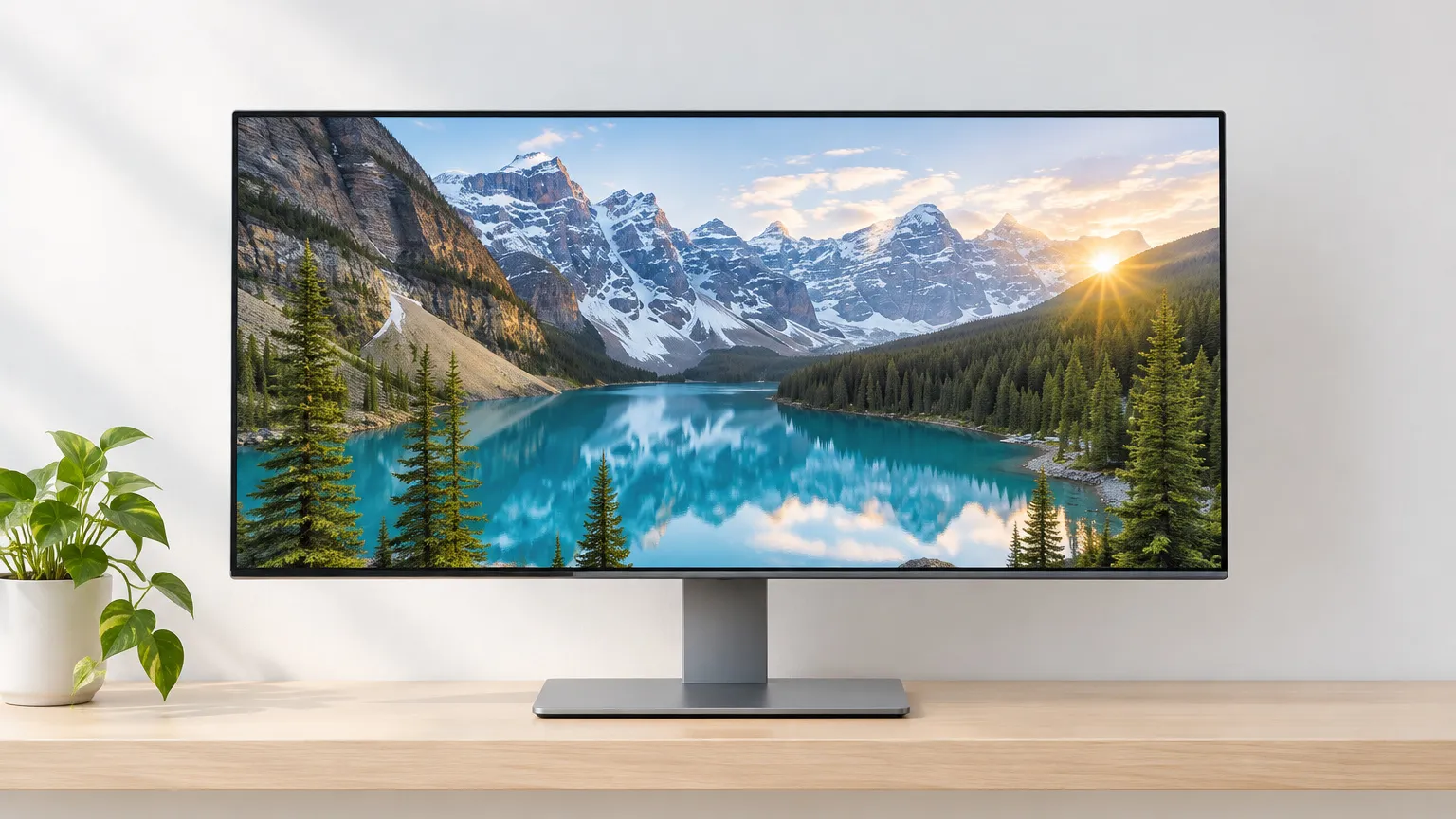
A 4K wallpaper is 3840 × 2160 pixels, so a 1920 × 1080 image needs exactly 2x, and a 960 × 540 image needs 4x. Crop to your screen's shape first, then upscale, so you never spend pixels on parts of the picture the screen will cut off.
Sizes are the first thing to settle, because "4K" only describes one of the screens people put wallpapers on.
Pick the size of your screen
4K UHD is 3840 × 2160 at 16:9. Plenty of desktops are something else, and the standard names give the pixel counts below.
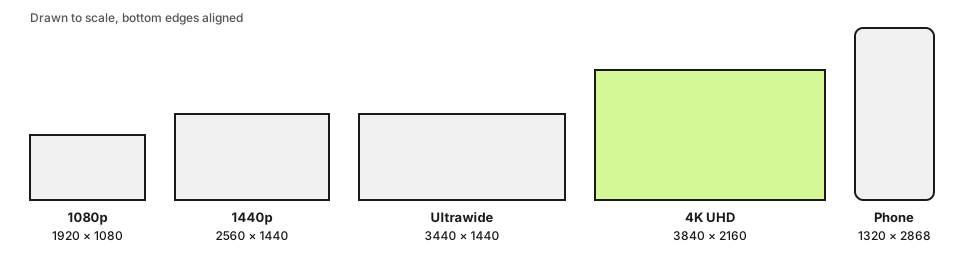
| Screen | Pixels | Shape |
|---|---|---|
| 1080p | 1920 × 1080 | 16:9 |
| 1440p | 2560 × 1440 | 16:9 |
| 4K UHD | 3840 × 2160 | 16:9 |
| Ultrawide | 3440 × 1440 | 21:9 (listed that way, strictly 43:18) |
| Super ultrawide | 5120 × 1440 | 32:9 |
| iPhone 16 Pro Max | 1320 × 2868 | portrait, about 9:19.5 |
The iPhone figure is from Apple's spec page. Other phones differ by a few percent, so check yours before you crop.
If your screen sits below 4K, a 4K wallpaper still works: the operating system scales it down and it looks fine. But you get no benefit from the extra pixels, so aim for your actual screen size and only go bigger if you plan to swap monitors.
Crop first, then upscale
Photos from a camera are usually 3:2 or 4:3, and a wallpaper is wider. Cropping removes pixels, so do it before you upscale and the upscaler works on the part you will see.
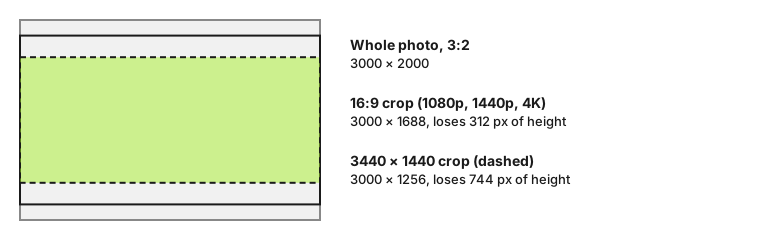
A 3000 × 2000 photo crops to 3000 × 1688 for a 16:9 screen, which loses about 16% of the height. The same photo cropped for a 3440 × 1440 ultrawide is 3000 × 1256, and now more than a third of the height is gone. Check that the subject still fits before you decide the photo suits an ultrawide at all. A lake with a lot of sky works. A portrait with a head near the top edge does not.
Which scale gets you to 3840 pixels
Take the width of your cropped image and divide 3840 by it. The image upscaler offers 2x and 4x, so you pick the one that reaches or passes your target and resize down to the exact size.
| Cropped source | Scale | Result | Then |
|---|---|---|---|
| 1920 × 1080 | 2x | 3840 × 2160 | Done |
| 1280 × 720 | 4x | 5120 × 2880 | Resize down to 3840 × 2160 |
| 960 × 540 | 4x | 3840 × 2160 | Done, but see below |
| 1024 × 576 (from a square AI image) | 4x | 4096 × 2304 | Resize down to 3840 × 2160 |
A 1280 px image sits between the two scales: 2x gives 2560, which is short, so go to 4x and resize down by 25%. The trade-off is that 4x asks the model to invent far more, as the 2x vs 4x pixel math shows: 960 × 540 to 4K is 16 times the pixels. A 960 px source reaches the right size, but expect softer textures than a 1920 px source gives.
Square AI images are the common trap. A 1024 × 1024 image cropped to 16:9 is only 1024 × 576, and you throw away 44% of the picture. If you want the whole scene, the steps for scaling AI art at print size apply here too, but you may be better off generating a 16:9 image in the first place.
When you don't need to upscale
Most wallpaper guides stay silent on this. Upscaling helps when the source is small. It's not worth much when the source is already close to 4K.
- The cropped image is 3840 px wide or more. Don't upscale. Resize down, or use it as is.
- The cropped image is between about 2500 and 3800 px wide. A plain bicubic or Lanczos resize keeps every real pixel and stretches by less than 1.5x, which is gentle. The image upscaler works on at most 2048 px along the long edge (1024 px on iPhones, iPads and devices with 4 GB of memory or less), so it would shrink a 3000 px image first and then enlarge it again. You'd lose real detail to gain invented detail.
- A phone wallpaper from a landscape photo. A 4000 × 3000 phone photo cropped to the iPhone 16 Pro Max's shape is 1381 × 3000, already wider than the 1320 px screen. No upscaling at all.
The tool earns its place below those sizes: a 1080p game screenshot, a 1280 px photo from an old camera or a downloaded wallpaper that looks soft at full screen.
How to do it
- Crop your image to the screen's aspect ratio in any photo editor. Keep the subject away from the edges, since some phones and desktops zoom or shift the picture slightly.
- Work out the scale from the table above. For a 1920 × 1080 crop, that's 2x.
- Upscale the photo to 3840 px wide: drop the file, choose the scale, and download a PNG for screenshots and graphics or a JPG for photos. The file never leaves your device.
- If the result is bigger than your screen, for example 4096 × 2304, resize it to the exact size in your editor.
- Set it as the wallpaper and look at it at full size. Check edges and any text in the image first, because that's where invented detail shows.
For a phone, a portrait source such as a 1080 × 1350 image cropped to the phone's shape is only 621 × 1350. At 2x that gives 1242 × 2700, about 6% short of 1320 px wide. A small plain stretch fills the gap.
What to look at before you keep it
Open the result at 100% on the screen it's meant for. Skies and water should be smooth, with no banding or waxy patches. Fur, foliage and brick textures can look slightly too regular after a 4x pass; if so, redo it from the original with 2x and accept a smaller size. Heavily compressed JPGs show blocky edges that upscaling enlarges, and no wallpaper size hides that. Start from the best copy you can find.
Ready to try it yourself? It's free, and your files never leave your device.
Try the free AI image upscaler