
How to Upscale a Screenshot So Text Stays Sharp
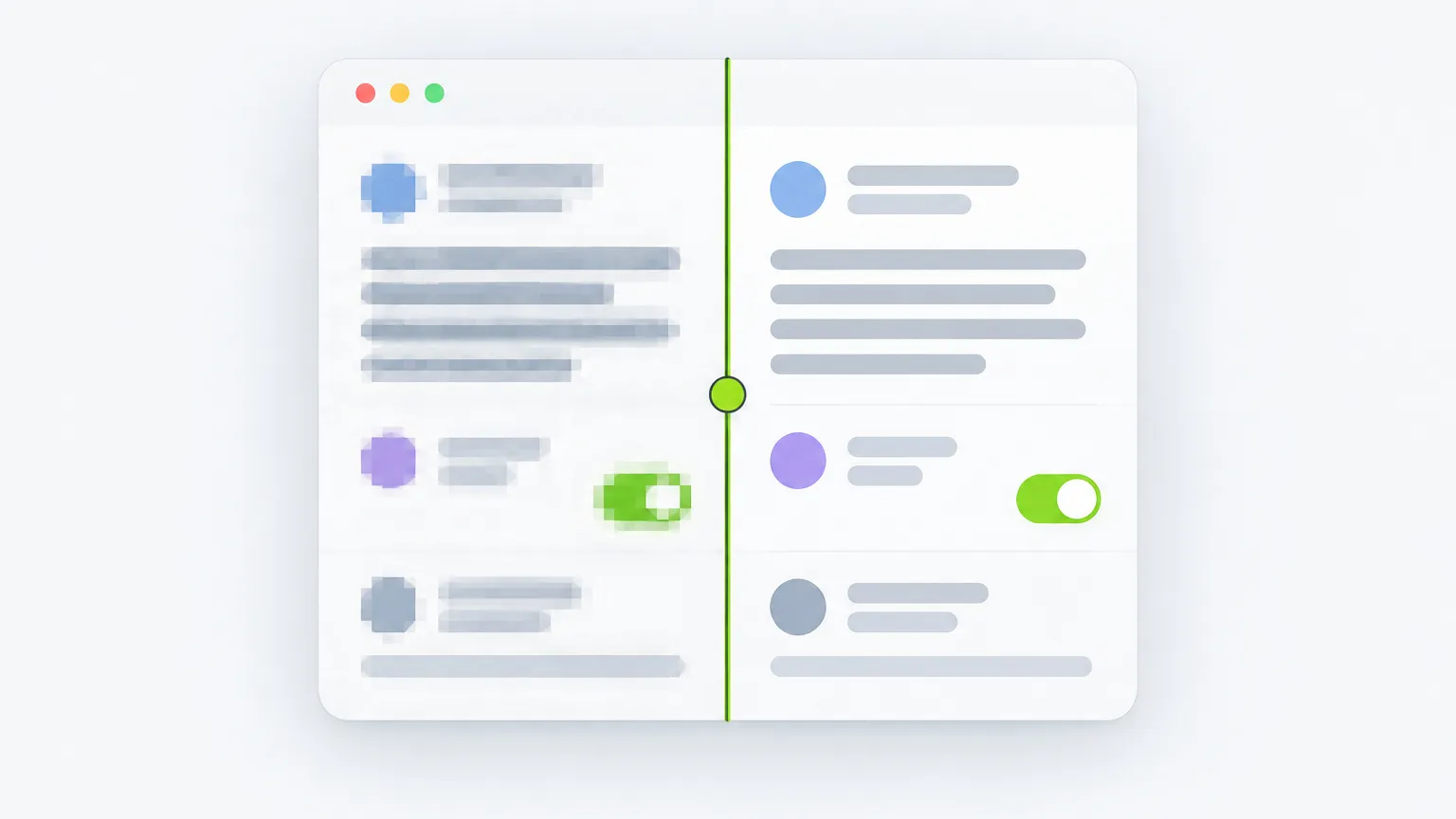
To upscale a screenshot and keep the text readable, start from the original PNG, crop to just the part you need, and enlarge it 2x with an AI upscaler. Save the result as PNG. If the screenshot has already been through a chat app or a JPG save, expect the smallest text to stay unreliable, and retype it instead of trusting the enlargement.
Text is the hardest thing you can ask an upscaler to enlarge. A photo can be a little wrong and still look right. A letter that is slightly wrong is a different letter.
Why screenshot text breaks
A screenshot is a perfect copy of the pixels your screen showed, so a fresh one is sharp at its own size. Trouble starts when the file changes hands or grows.
JPEG compression chews on letters. JPEG splits an image into 8×8 pixel blocks and rounds off detail in each one. Wikipedia notes that the artifacts show up as noise around contrasting edges, and that JPEG is "not well suited for line drawings and other textual or iconic graphics". Black text on white is exactly that. It also stores color at half resolution in each direction (4:2:0, the most common setting), so thin colored text picks up smears of the wrong color.
Screen text is tuned for one screen. On many Windows setups, text is drawn with ClearType, which uses the red, green and blue stripes inside each pixel to place letter edges more finely. The side effect, per Wikipedia's subpixel rendering article, is color aliasing: the edges of letters carry faint colored fringes. Enlarge a screenshot like that and the fringes grow with it.
Chat apps and social posts recompress. A screenshot that came through a messaging app or a repost is usually a JPG-style copy of a PNG, and each save adds blocks. Apps don't publish their exact settings, so treat any screenshot that has been forwarded as already damaged.
What each upscale method does to letters
We rendered a small invoice-style page at 640×360 px, the way a browser draws it, and tried the obvious routes on one text region.
First, plain resizing. Here is a 95×44 px crop enlarged 8x with nearest neighbor and with Lanczos:
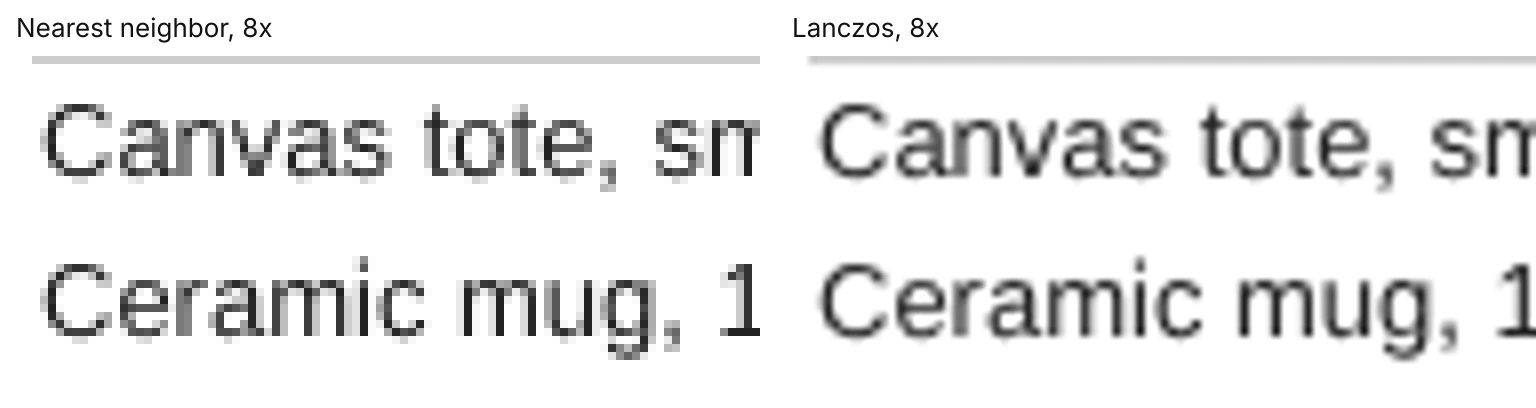
Nearest neighbor keeps every pixel exact and turns each letter into stair steps. Lanczos smooths the steps but cannot add detail, so the strokes get soft. Neither makes the text easier to read than it was; it is just bigger. The guide to resizing without AI explains why, and when each method is still the right call.
An AI upscaler works differently. It has learned what letter edges usually look like, so it can redraw straight strokes and round curves instead of averaging pixels. How AI rebuilds detail is its own topic. For screenshots the result is usually a clear improvement on text that is small but clean.
The catch is damaged text. We re-saved a crop of that same page as a JPG at quality 15 and compared it with the original PNG:
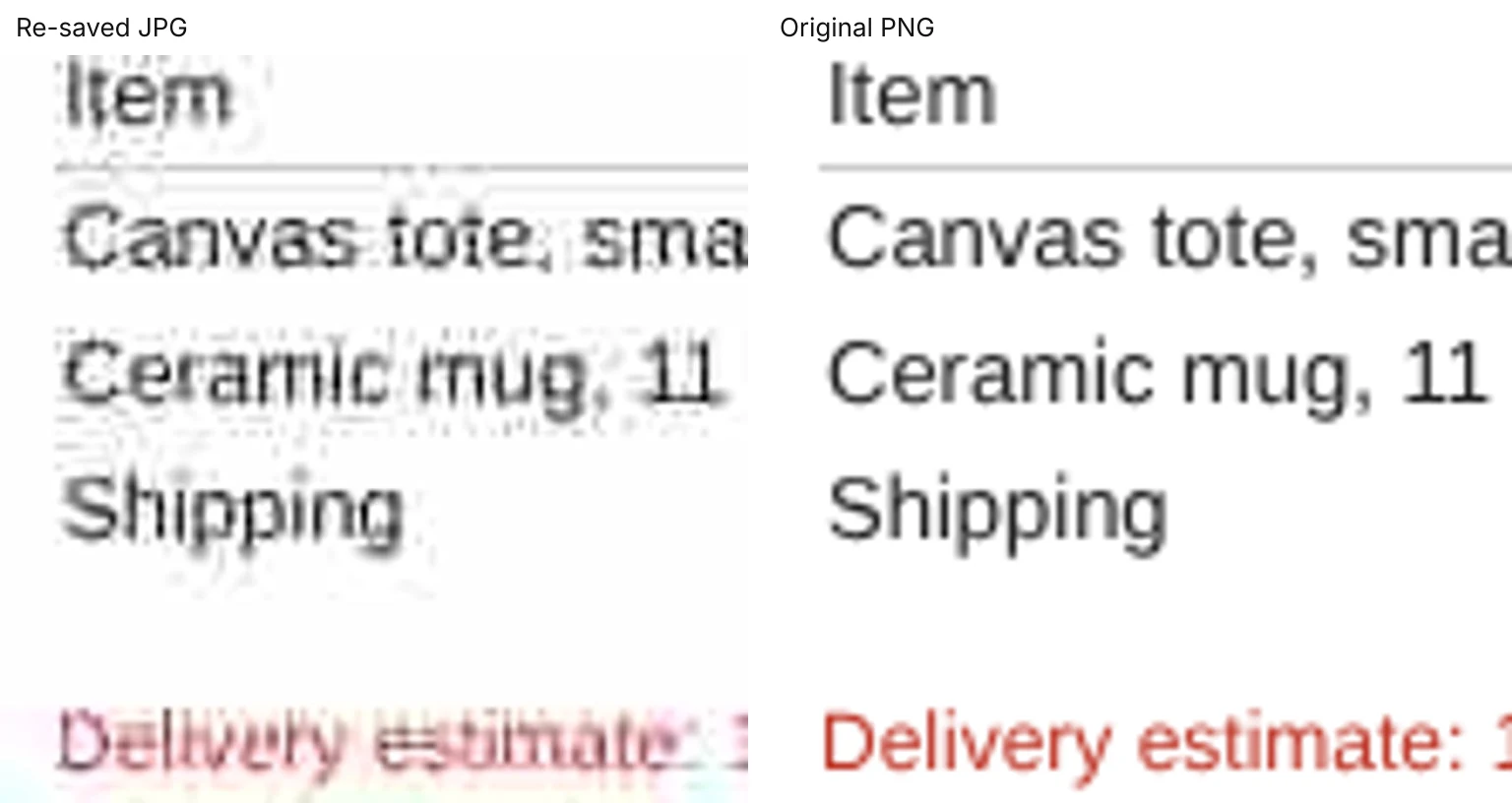
Look at the second row on the left. "Ceramic" has become something close to "Cerarnic", because the r and n have merged into a shape that reads as an m with a gap. An upscaler sees the damaged pixels, not the original word. It will redraw them crisply, and it will redraw the wrong letters just as crisply. That is how a confident wrong word ends up in your enlarged screenshot.
Steps that keep text readable
- Find the original. Take a new screenshot if you can, or ask the sender for the PNG file rather than the version that went through a chat. A new screenshot of a zoomed-in page often beats any upscale: zoom the browser to 200% and capture again, and you get real pixels.
- Crop to the text first. A crop gives the upscaler fewer pixels to handle and gives you a bigger result for the part that matters. The image tool works on images up to 2048 px on the long edge (1024 px on iPhones and low-memory devices) and scales larger ones down first, so a full-resolution phone screenshot gets shrunk before it is enlarged. Cropping avoids that.
- Upscale the screenshot 2x and look at it at 100%. Use 4x only when the crop is tiny, for instance a 200 px wide strip of a chat that needs to fit a slide. Extra scale does not rescue text that was already unreadable.
- Save as PNG. PNG is lossless, so the letters stay as the upscaler drew them. Saving the result as a JPG adds new blocks around every letter, which is the damage you just worked to remove. The image tool offers PNG, JPG and WebP, so pick PNG.
- Check the numbers and names yourself. Compare every digit, name and URL with the source, character by character. Wrong 3s and 8s, or a 1 that became an l, are the usual failures.
When to retype instead
If the text carries money, dates, addresses, medication names or anything someone will act on, do not rely on an enlarged copy. Run text recognition on the best copy you have (Live Text on iPhone, Google Lens on Android, or the text tools built into most screenshot utilities) and fix the result by hand, or retype it. An upscaler is the right tool for making a screenshot easier to look at in a slide or a post. It is not a way to recover facts the pixels no longer hold.
A screenshot of a screenshot, in particular, is a poor candidate. If the text was tiny and compressed before you started, the honest answer is often that no method can make it readable, and the original is the only fix. A photograph of a screen is a different problem again, because it has real camera blur on top; why a blurry photo needs different handling covers what blur removal can and can't do.
Decision rule: if the screenshot is a clean PNG, crop and upscale 2x. If it has been through a chat app or a JPG save, upscale for looking, then retype anything that matters.
Ready to try it yourself? It's free, and your files never leave your device.
Try the free AI image upscaler