
Upscaling vs Frame Interpolation: What Each Changes
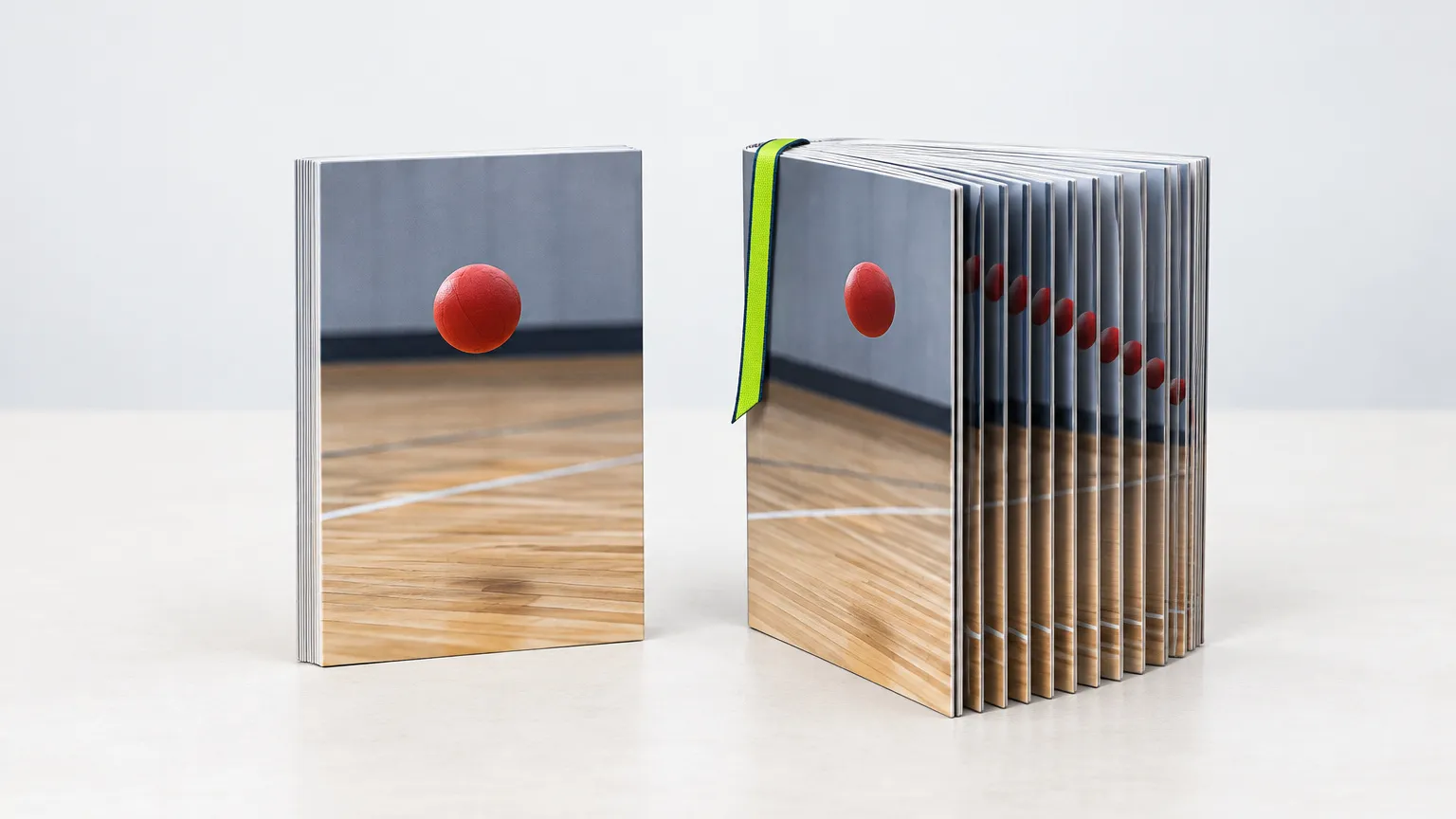
Upscaling changes how many pixels are in each frame. Frame interpolation changes how many frames there are in each second. They fix different problems, they fail in different ways, and a clip that is both soft and choppy needs two separate steps. "Upscale to 4K 60 fps" in a product listing is two jobs sold as one.
Interpolation is not something FreeUpscaler does. Our video upscaler keeps your frame rate as it is, so this post is about telling the two apart and deciding whether you need the second one at all.
Resolution and frame rate are separate axes
Resolution is spatial: width × height, for every frame. Frame rate is temporal: how many of those frames are shown per second. Upscaling moves a clip along the first axis. Interpolation moves it along the second.
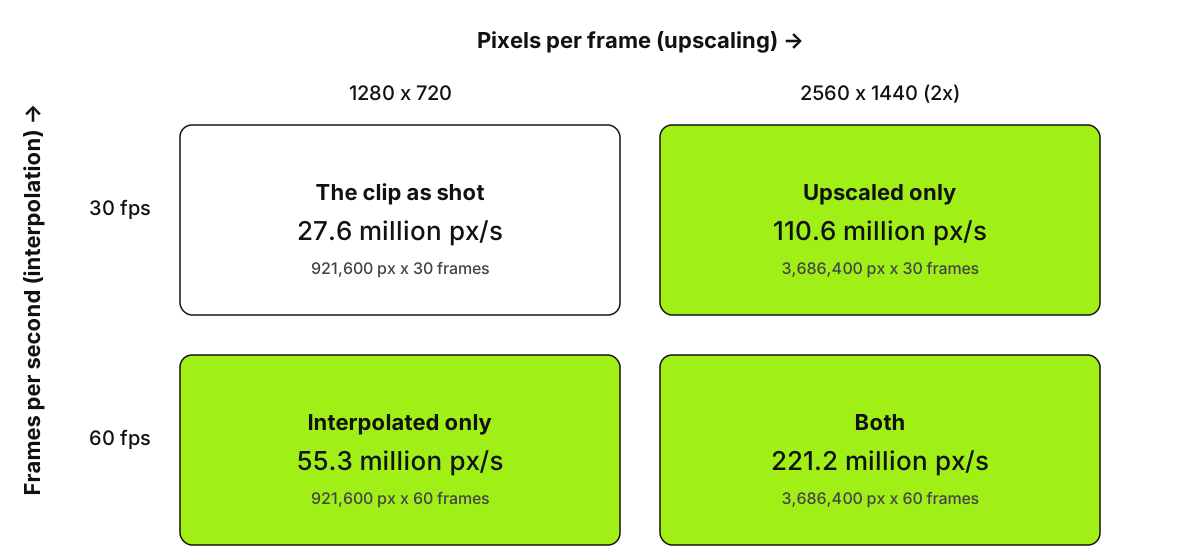
A 1280×720 clip at 30 fps carries 921,600 pixels per frame, or 27.6 million pixels per second. Upscale it 2x and each frame becomes 2560×1440 (3,686,400 pixels), so the clip carries 110.6 million pixels per second. Double the frame rate instead and it carries 55.3 million. Do both and the total is 221.2 million, eight times the original workload.
The two also differ in what they use as raw material. An upscaler works inside one frame (or a few neighbors) and rebuilds detail the enlargement would otherwise smear. How AI video upscaling works covers that in depth. An interpolator never touches the frames you gave it. It looks at two real frames, estimates how things moved between them, and paints a new frame for the middle. As Wikipedia's entry on motion interpolation puts it, the frames are synthesized between existing ones.
How each one fails
An upscaler's typical failure is texture that doesn't hold still. Fine patterns such as brick, foliage or hair get rebuilt slightly differently from one frame to the next, and the result shimmers or crawls. It also can't recover detail that was never recorded: a face that was 20 pixels wide stays an invented face.
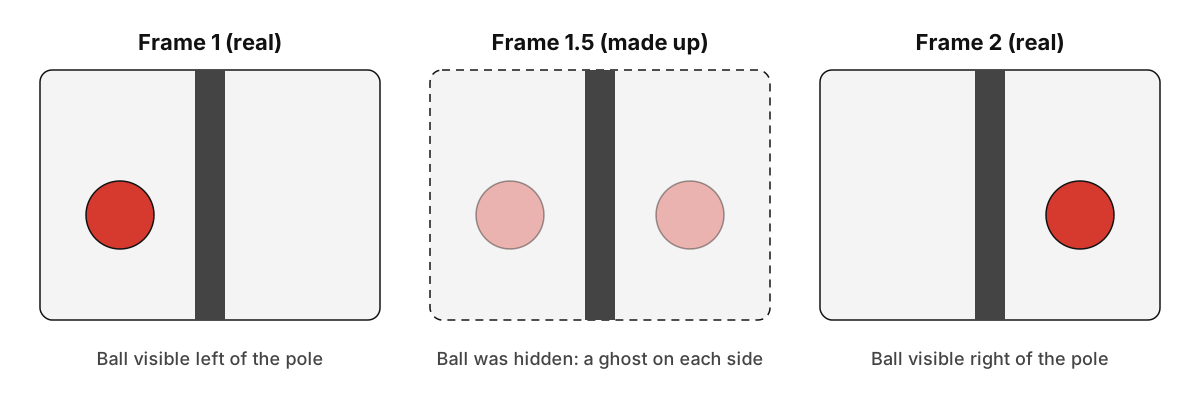
An interpolator's typical failure is a wrong guess about motion. When something is hidden in one frame and visible in the next, there is nothing to match, so the new frame often shows a ghost, a smear or a warped shape. An AI-industry glossary entry on frame interpolation lists fast motion, foreground objects crossing the background and rapid pans as the hard cases, and notes that interpolating across an edit cut gives badly artifacted frames.
The gap matters too. Wikipedia notes that artifacts happen more often when the gap between frames is bigger. Taking 30 fps to 60 fps adds one frame per gap and the two real neighbors are 33 ms apart. Taking 24 fps to 60 fps means asking for 2.5 frames per original frame, so most new frames fall at awkward in-between positions, with 42 ms between the real ones. Whole multiples (24 to 48, 30 to 60) are the safer ask.
When 24 fps should stay 24 fps
Film is shot at 24 fps, and the slight stutter plus the motion blur of each frame is part of how it looks. Interpolation tends to remove exactly that, which is the "soap opera effect" viewers complain about. Some people just dislike smooth motion, even when it is real. Sports and gameplay are the opposite case: there, more frames usually help.
YouTube's upload encoding guidance says to upload at the frame rate the content was recorded in, and lists 24, 25, 30, 48, 50 and 60 as common. So a clip shot at 24 fps does not need to become 60 to play anywhere. A 120 Hz display shows 24 fps content with every frame held for exactly five refreshes, according to the same Wikipedia article, so modern screens don't force the conversion either.
Interpolation earns its place in a few cases:
- Slow motion from footage that was shot at a normal speed.
- Sports, screen captures or game clips where smoother motion is the point.
- Low-frame-rate sources, such as a 12 or 15 fps animation, where the choppiness is a flaw rather than a style.
For everything else (old home video, film, a clip with lots of cuts), skip it. One related thing is not interpolation at all: old interlaced tape already contains 50 or 60 fields per second, and deinterlacing at the double rate gives smooth motion without inventing anything.
Which one to run first
There's no settled answer. Users of one video editor's forum split on it: some run frame rate conversion first because it was much faster than the reverse on the same clip, and one expected upscaling first to give the interpolator more detail but hadn't tested it (Topaz Labs community thread). A Civitai recipe for an interpolation API makes the order a hard rule only because its interpolator caps input at 2048 px, tighter than the upscaler's output (Civitai docs).
The trade-off is simple to state:
- Interpolate first: the upscaler then processes twice as many frames (at 30 to 60 fps), so the upscale step takes about twice as long. The interpolator sees small frames, so it runs fast and doesn't hit input-size caps.
- Upscale first: the interpolator then works on frames with four times the pixels at 2x. It has more detail to match, which may help on messy footage, but it is slower and heavier.
Our recommendation: interpolate first when the clip is small and clean, upscale first when the source is noisy or blocky and you want a bigger, sharper frame to estimate motion from, and test both on a 10-second clip before committing to a long one.
If you use our upscaler, add two limits to the calculation. It accepts up to 150 MB and 5 minutes of processed video, and a 60 fps file usually has a bigger bitrate than the 30 fps one it came from, so interpolating first can push a clip past 150 MB sooner. The output also has to fit 3840×2160, which means a 1080p clip can go 2x but not 3x, while a 720p clip can reach 3x (exactly 3840×2160).
A short decision rule
Look at the clip. If the picture is soft or too small for the screen, you need an upscale: upscale the clip at its original frame rate and see whether motion still bothers you. Only if the motion itself looks choppy at normal playback, and the footage isn't meant to look like film, add interpolation as a separate step, with a whole-number multiple, and watch the result at full speed for ghosting wherever something crosses in front of something else.
Ready to try it yourself? It's free, and your files never leave your device.
Try the free AI video upscaler