
PNG, JPG or WebP: Saving an Upscaled Image
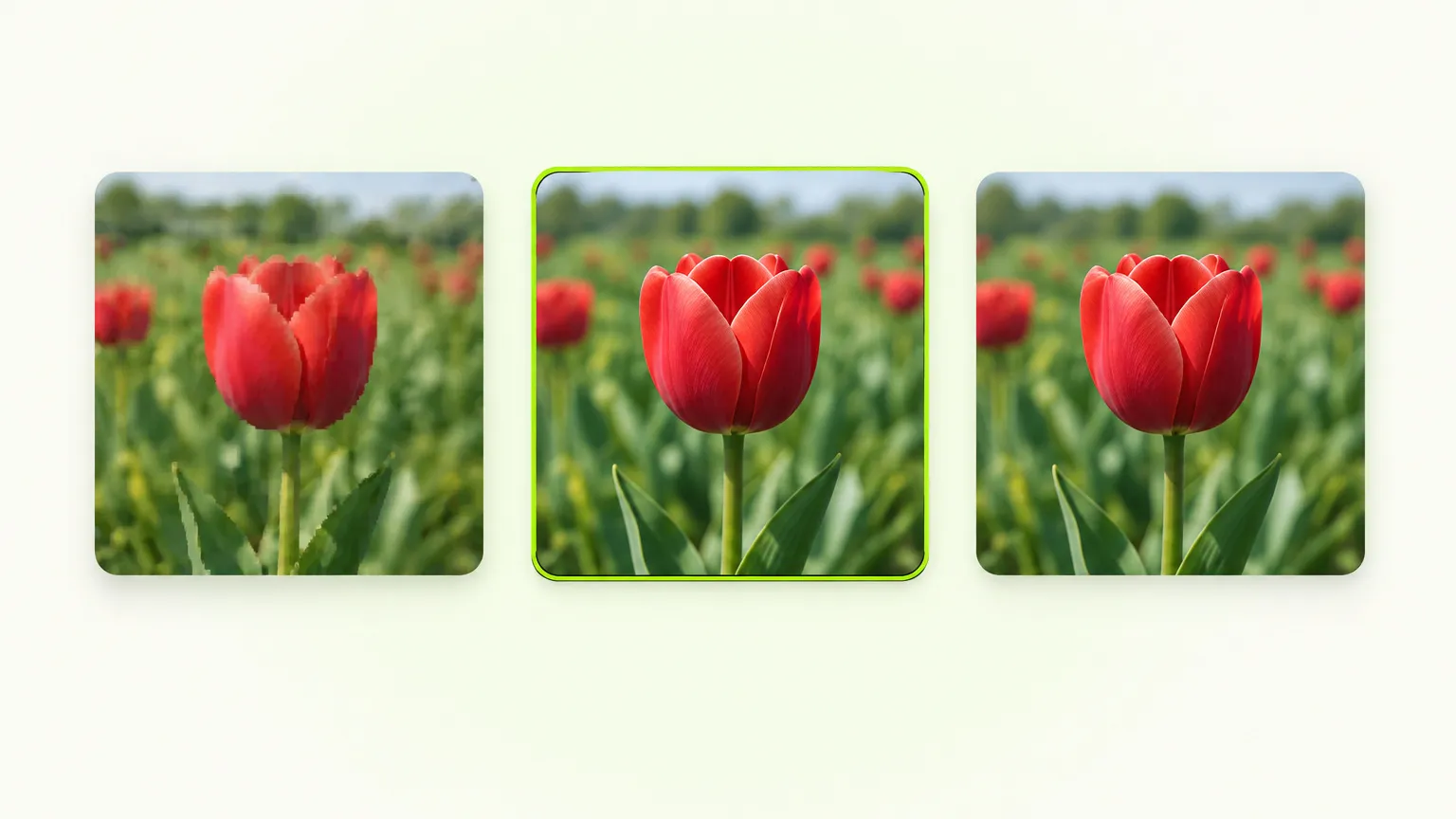
Save an upscaled photo as PNG if you plan to edit it again or archive it, and as a high-quality JPG if it is going to a screen, a print lab or a chat. Pick WebP only for a website you control. For screenshots, text and line art, PNG is the only one of the three that never changes a pixel.
The reason to care is size. We upscaled a 400 px photo 2x to 800×800 px and saved the result seven ways. The PNG came out at 933 KB. A JPG at quality 92 of the same pixels was 84 KB.
What the three formats do to your pixels
PNG is lossless. Every pixel you save is the pixel you get back. The price is file size, because photos have noise and texture that lossless compression can't squeeze. MDN recommends it for screenshots, diagrams and line art, where blur and colored fringes around sharp edges are very visible.
JPG is lossy. It throws away detail the eye is least likely to miss and keeps the rest. It was built for photographs, and every save at a lower quality setting throws away a little more. It can't store transparency.
WebP can be either. It has a lossy mode that competes with JPG and a lossless mode that competes with PNG. Google's own comparison found lossy WebP files 25% to 34% smaller than JPEG at an equal SSIM score, and lossless WebP about 26% smaller than PNG. Browsers have supported it for years, but plenty of older software, print lab upload forms and chat apps still treat it as an odd file.
The same photo, saved seven ways
The test image is the 2x output for a 400×400 px sample photo of a beagle. We encoded the PNG from the upscaler with a standard image library at different quality settings, so your browser's encoder will land close to these numbers, not exactly on them.
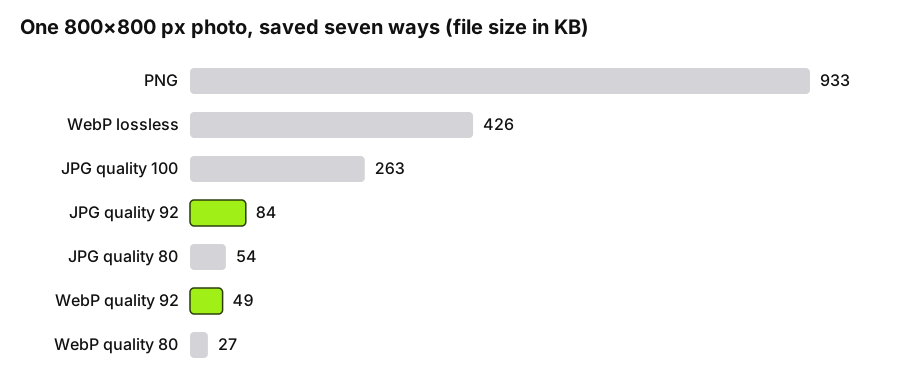
Three things stand out.
JPG at quality 100 is not lossless. It is still lossy, it just keeps more, and it costs 263 KB against 84 KB at quality 92. For a photo you will look at on a screen, that extra 180 KB buys nothing you can see. Quality 90 to 92 is where JPG stops being worth the bytes.
Lossless WebP is less than half the size of the PNG (426 KB against 933 KB) with the same pixels. If you can use WebP at all, lossless WebP is the smaller way to archive.
Lossy WebP was smaller than JPG at the same number, 49 KB against 84 KB at quality 92. Do not read too much into that, because quality 92 in one encoder is not quality 92 in another. Google's range of 25% to 34% is the safer expectation, and this particular photo is smooth, with a blurred background, which favors WebP.
What lossy saving costs you
Here is a 130×130 px crop around the whiskers, enlarged 4x so the pixels are visible: the PNG, then JPG at quality 92, then JPG at quality 60.
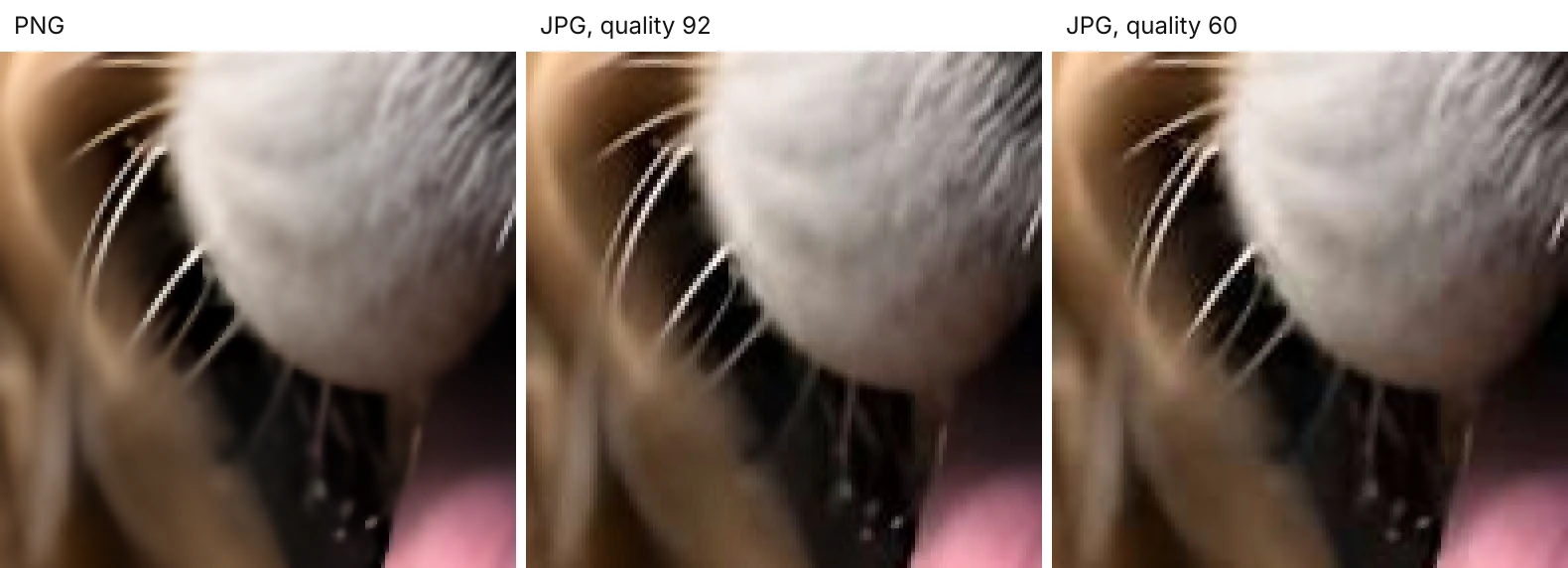
At quality 92 you have to look for the difference. The thinnest whiskers are a shade softer. At quality 60 the whiskers smear into the dark background and pick up a grain around them. A saved JPG at 37 KB looks like a different, worse photo than the one the upscaler produced.
That is the real risk of lossy formats on upscaled images: the upscaler just spent effort drawing fine detail, and a low quality setting can remove it again. The detail an enlargement adds is mostly fine edges and texture, which is exactly what lossy compression trims first. If you saved a 2x result and it looks softer than the preview, check the export format before you blame the upscale.
Chroma subsampling adds a second loss. The usual JPG setting stores color at half the width and half the height of the brightness data (4:2:0), and lossy WebP does the same (Google's WebP FAQ lists YUV 4:2:0). Thin colored lines, such as red text on white, bleed a little as a result.
Which format for which destination
| Where it is going | Save as | Why |
|---|---|---|
| More editing, or an archive copy | PNG | Lossless, so you never re-compress a result you are going to touch again |
| A print lab or photo book | JPG at quality 90 or higher, or PNG if the lab accepts it | JPG is the format every lab upload form takes; the file sizes stay manageable at print resolution |
| A website you control | Lossy WebP for photos | Smaller pages, and every current browser reads it |
| Instagram, a chat or a forum | High-quality JPG | They re-compress what you send anyway, so a clean JPG gives them the best starting point |
| Screenshots, UI, text, logos | PNG | Lossy formats put fringes around sharp edges |
| Email attachment to a person | JPG | It opens anywhere, and a 2x photo stays a few hundred KB |
A few notes on that table. Social apps decide their own compression, and the Instagram guide covers what that does to an upload and why starting from a high-quality JPG helps. For print, the pixel dimensions decide whether the print looks sharp, and the format only decides how safely the file gets there; how many pixels a print needs is a separate calculation. And for text, the screenshot guide shows what a JPG save does to letters.
Saving from the image upscaler
FreeUpscaler's image tool offers PNG and JPG on every browser, and WebP only where the browser really can encode it. Safari does not, so you won't see WebP there. The JPG and WebP exports use a fixed high quality setting of about 92, so there is no slider to lower, and the sizes above are a fair guide to what you will download.
Two limits are worth knowing before you choose:
- The result is always opaque. Transparent areas in a PNG or WebP are flattened onto white, so a logo with a see-through background comes out on a white box. If you need transparency, keep the original and place the upscaled version in an editor that can cut the background.
- Each re-save as JPG adds more loss. Do the upscale once, export once, and keep the PNG if you might need another size later. If you need a smaller copy, go back to the PNG, not to the JPG.
Rule of thumb: export PNG first, keep it, and make JPG or WebP copies from it for each place the picture goes. If you also have to decide how large to enlarge the photo before you save it, the guide to enlarging without losing quality covers that part.
Ready to try it yourself? It's free, and your files never leave your device.
Try the free AI image upscaler