
Video Resolutions Explained: 480p to 4K
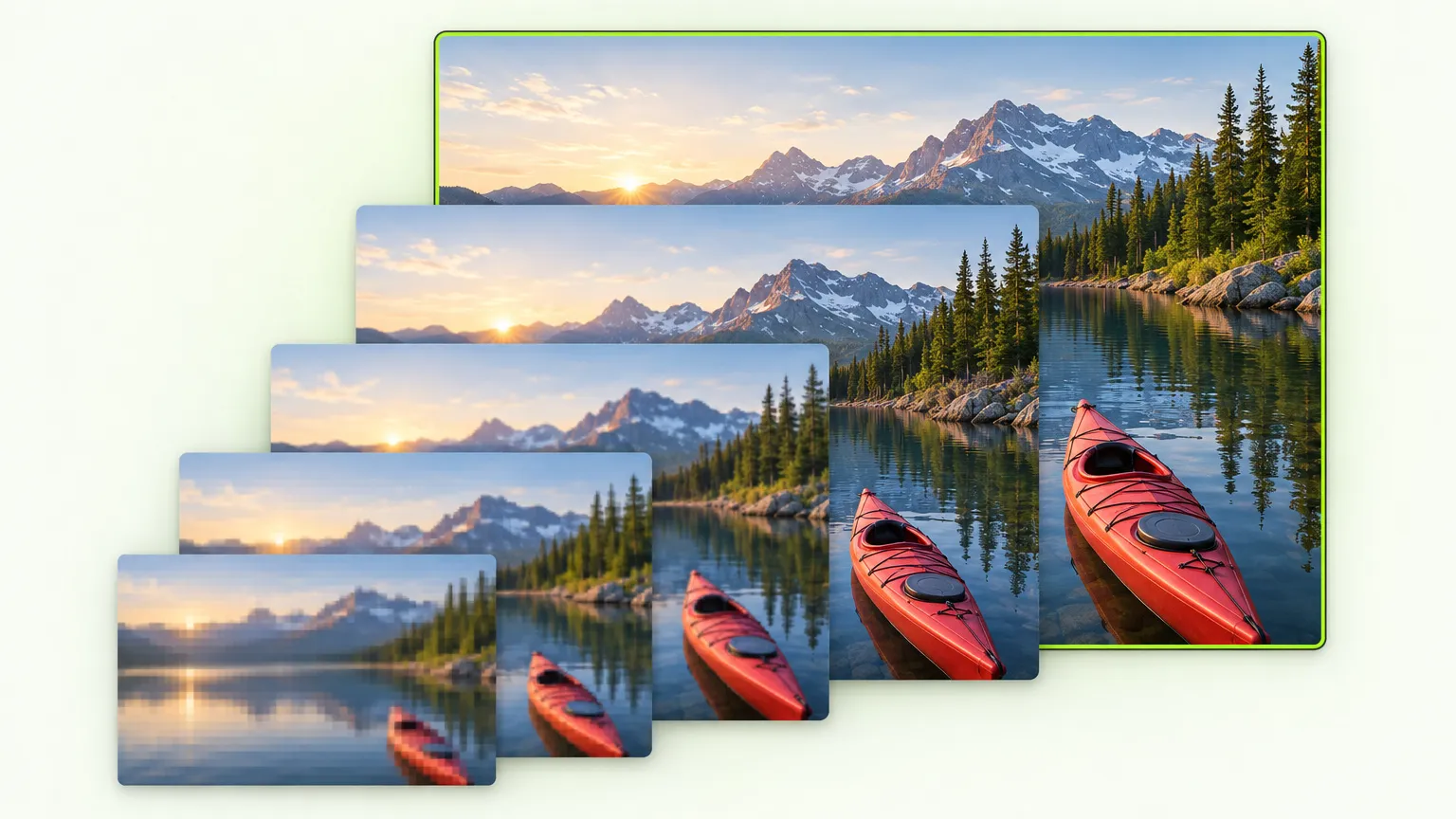
A video resolution name is a shorthand for a frame size in pixels. 480p is 854×480 in 16:9 (or 640×480 in 4:3), 720p is 1280×720, 1080p is 1920×1080, 1440p is 2560×1440, and 4K UHD is 3840×2160. Most steps up add about 2.25 times the pixels (480p to 720p, 720p to 1080p, 1440p to 4K), and 1080p to 1440p adds about 1.8 times. The numbers below are exact, and the table at the end shows which upscale factor gets each size to the next one.
The sizes, to scale
Here are the five common 16:9 sizes drawn on one canvas. The pixel counts are width × height, so you can see how quickly the totals climb.
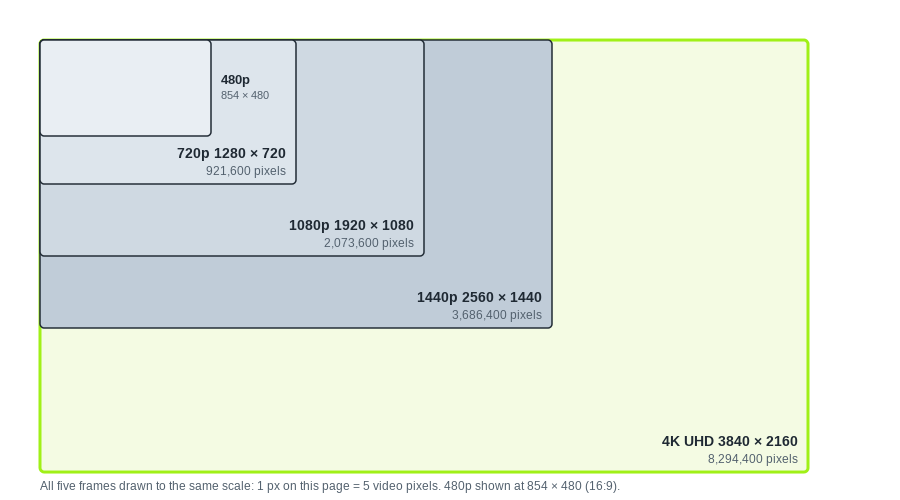
Compare totals, not the numbers in the names. 4K UHD holds 8,294,400 pixels against 409,920 for 854×480, about 20 times as many. Going from 1080p to 4K quadruples the pixels even though the name only doubles from "1080" to "2160". That is why a 4K file is so much heavier to store and so much slower to process: the work follows the area, not the label.
Why 480p has three sizes
"480p" only fixes the height at 480 lines. The width depends on the pixel shape and the aspect ratio, and you'll meet three of them.
- 640×480 is 4:3 with square pixels, the old VGA size and the shape of most pre-widescreen camcorder and webcam footage.
- 720×480 is what NTSC DVDs store. The pixels aren't square, so players stretch it to 640×480 or 854×480 depending on the disc's flag. Upscaling a DVD covers that.
- 854×480 is 16:9 with square pixels. The exact width for 16:9 is 853⅓, and Wikipedia's resolution reference lists 854 as the rounded value. YouTube's recommended resolution list uses 854×480 as its 480p.
If a program says it wants a "480p file", ask which one. Feeding 640×480 into a 16:9 project leaves black bars at the sides or stretches the picture.
What the p and the i mean
The letter after the number says how the frame is delivered. A "p" is progressive: every frame holds all of its lines. An "i" is interlaced: each frame arrives as two fields, one with the odd lines and one with the even lines, shown one after the other. 1080i has the same 1920×1080 frame as 1080p, but its fields carry 540 lines each, and moving edges show combing when the two fields are put together. Old broadcast recordings and some camcorder tapes are interlaced.
Interlaced footage should be converted to progressive before you enlarge it, because an upscaler will happily enlarge the comb teeth. Check the file's scan type in MediaInfo (below) first.
2K, 1440p, 4K UHD and DCI 4K
The "K" names count thousands of horizontal pixels, and they are applied loosely.
- 1440p is 2560×1440. YouTube's own list calls it "1440p (2K)", while many monitor makers call it QHD. Same size, three labels.
- DCI 2K is 2048×1080, the cinema projection format that Digital Cinema Initiatives set in 2005. By the same horizontal-pixels logic, plain 1920×1080 is sometimes called 2K too. These are different sizes with a similar name.
- 4K UHD is 3840×2160. This is what TVs, YouTube and almost every camera menu mean by "4K".
- DCI 4K is 4096×2160, a cinema size with a wider 256:135 frame. It has 8,847,360 pixels, about 6.7% more than UHD.
When you pick an export setting or a TV mode that says 4K, 3840×2160 is almost always right. Choose 4096×2160 only when a cinema or festival delivery spec asks for it.
Vertical and phone video
A phone clip held upright is stored as 1080×1920 or as a 1920×1080 frame with a rotation flag, and either way it's "1080p". The name follows the short side of a landscape frame, so a vertical video's width is the 1080. Some tools read the stored size and ignore the flag, which is one reason a file's reported size can disagree with how it plays.
Which scale takes each size where
An upscale multiplies width and height by the same factor. The free upscaler offers 2x, 3x and 4x on clips up to 5 minutes, and it won't make a frame bigger than 3840 pixels on the long edge or 2160 on the short edge, so a scale that would pass 4K UHD isn't offered for that clip.
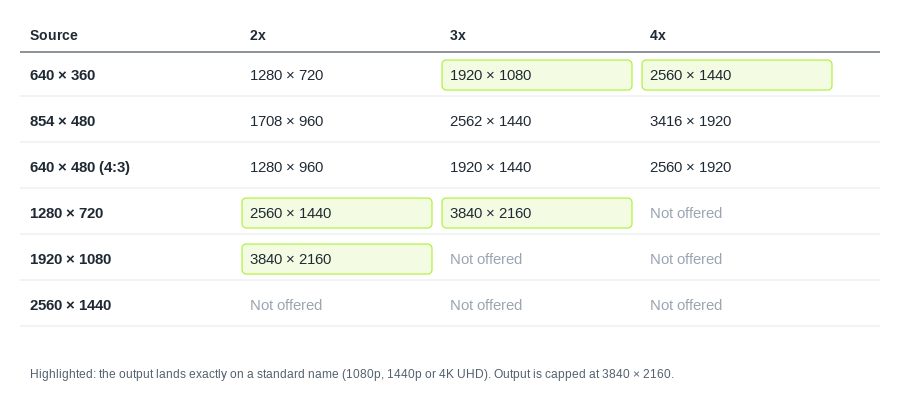
Three things the table shows that generic guides skip:
- 480p does not reach 1080p with a whole-number scale. 1920 ÷ 854 is 2.25. At 2x you get 1708×960, a size no platform names. At 3x you overshoot to 2562×1440, which is effectively 1440p. Pick 2x if the file is headed to a phone, and 3x if you want it large and are happy to let the player downscale a little.
- 360p to 1080p is a clean 3x (640×360 to 1920×1080), and 720p goes to 1440p at 2x and to 4K at 3x. Those are the cases where the output lands on a standard name with no resizing afterwards.
- 1080p only goes up once. 2x makes a 3840×2160 file, and anything beyond that is over the cap. 1440p footage has no scale at all.
To run one of these, take a 720p clip to 1440p or 4K in the browser. The 1080p and 4K walkthrough covers the steps and what to expect from the footage.
Two limits matter for the numbers above. A bigger frame doesn't carry more real detail than the source had, only a cleaner rebuild of it, which how AI video upscaling works explains. And a bigger frame needs a bigger bitrate or it turns blocky, a trade-off video bitrate explained works through with file-size numbers.
How to check a file's real resolution
The name in a file or a download page is a claim. The file knows its own size.
- MediaInfo (free, Windows, Mac and Linux): open the file and read Width, Height, Display aspect ratio and Scan type. This is the one to use for interlacing and for non-square pixels.
- VLC: play the file, then Tools, Codec Information. The Video stream shows the decoded resolution and the display size.
- Mac: select the file in Finder, press Command-I, and open More Info. Dimensions is listed there.
- Windows: right-click the file, Properties, Details tab. Frame width and Frame height are under Video.
If the stored size and the display size differ, the display size is the one you see. The upscaler uses that display size, so a clip tagged for 16:9 playback keeps its shape.
Write the size down before you choose a scale, find it in the table, and pick the row whose output you actually need.
Ready to try it yourself? It's free, and your files never leave your device.
Try the free AI video upscaler